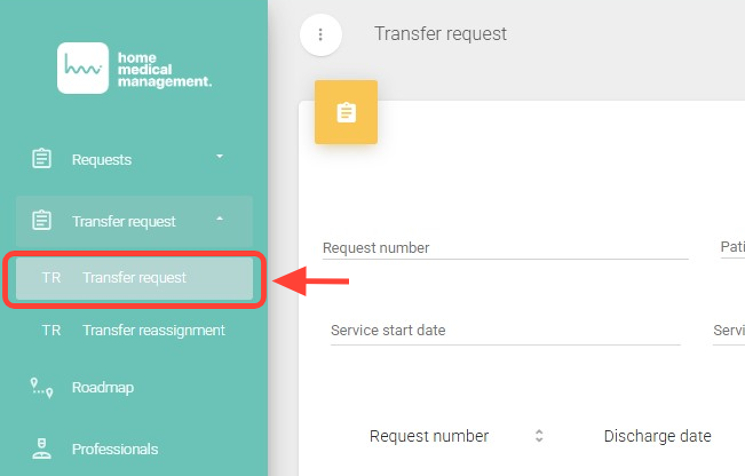
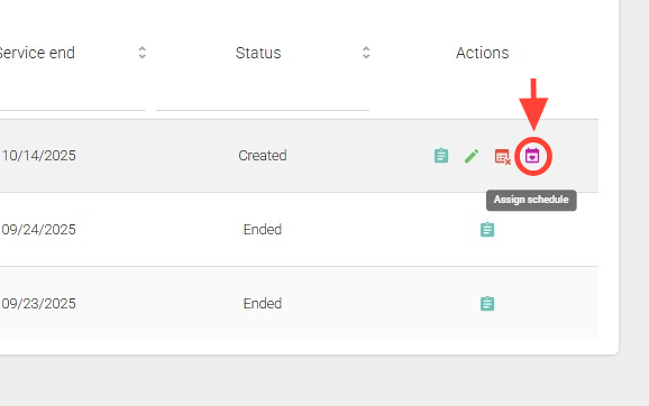
2. In the Actions column, click the Assign Schedule button.
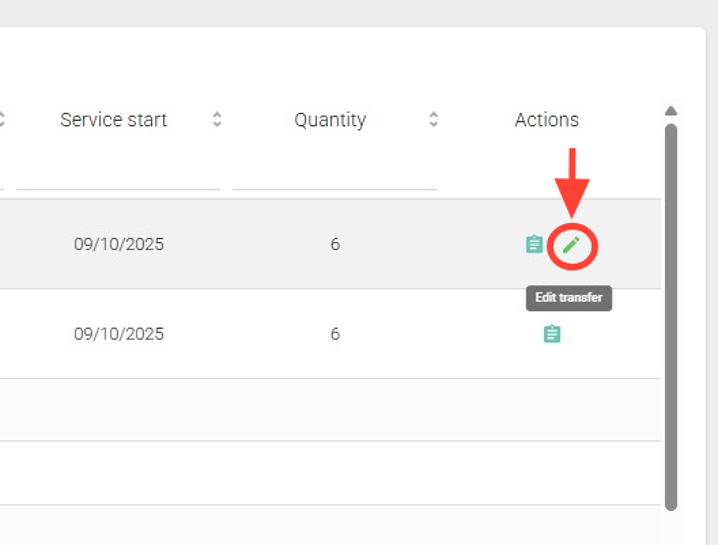
3. Once inside, in the Services panel, under the Actions column, click Edit Transfer for the service you want to assign.
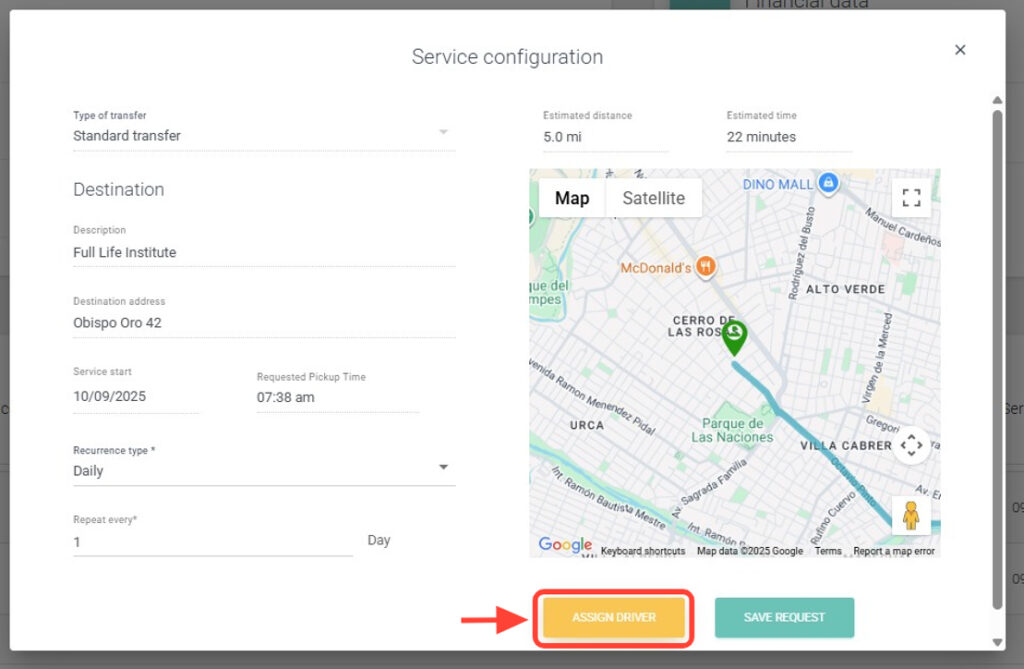
4. Next, click Assign Driver.
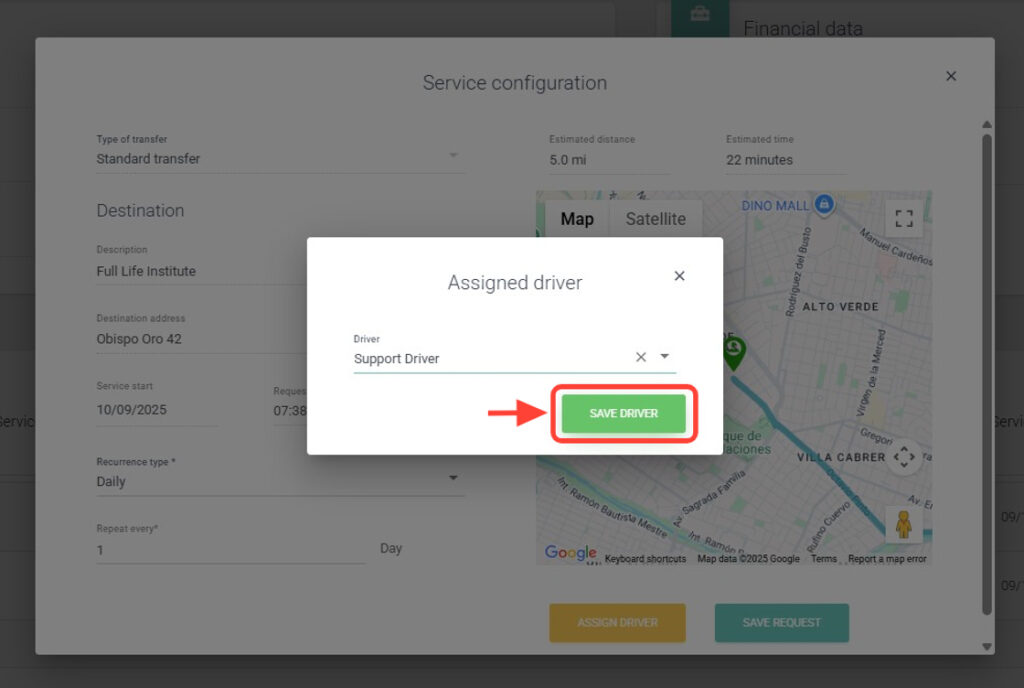
5. Assign a driver to the service and click Save Driver.
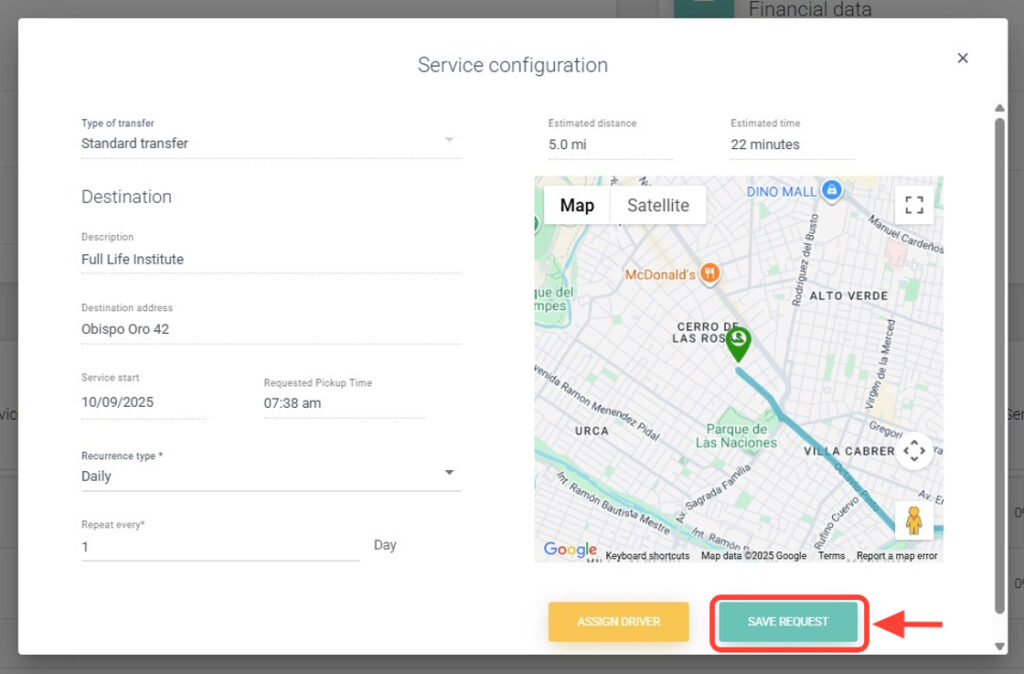
6. Then click Save Request.
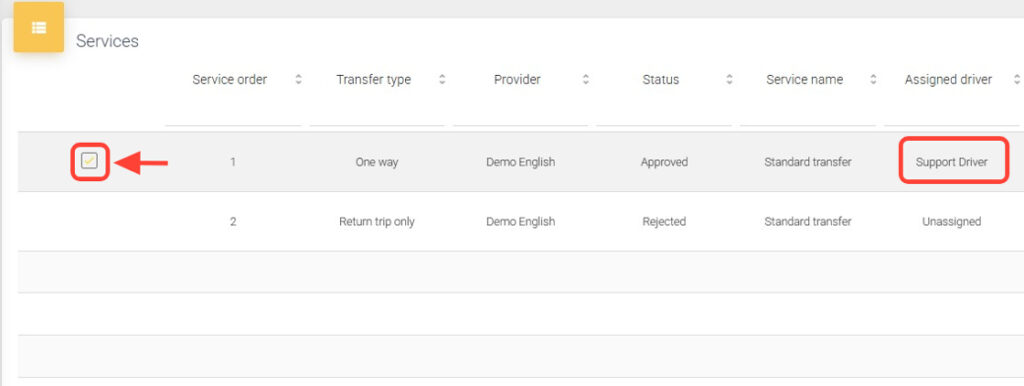
7. For the service with the assigned driver, click the checkbox to select it.
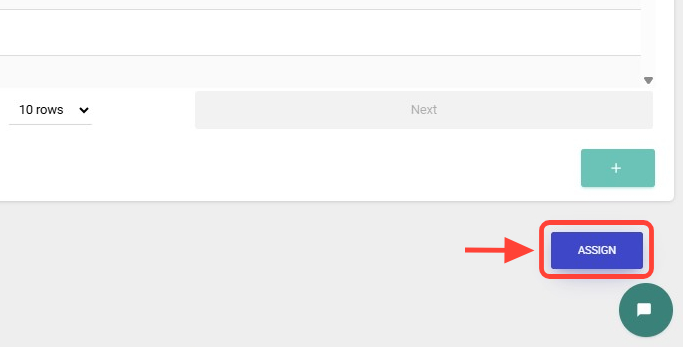
8. Press the Assign button to continue with the assignment.
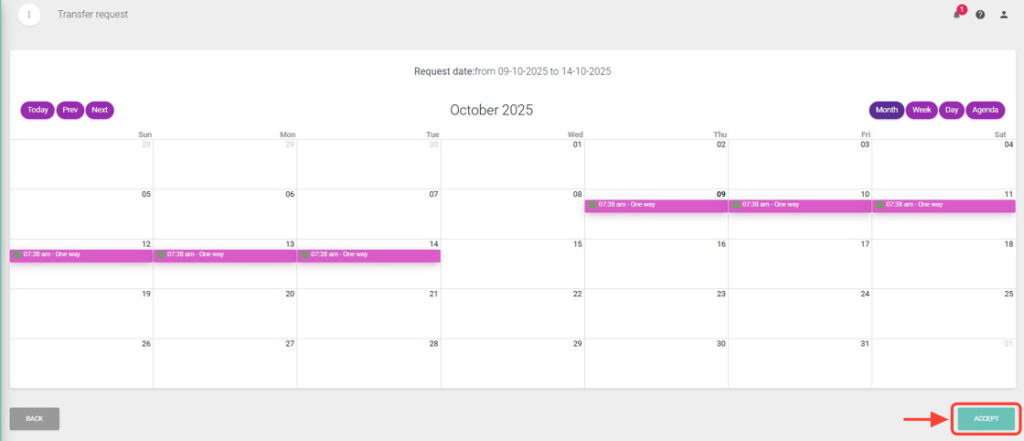
9. The calendar will open so you can verify the status of the transfers. If everything is correct, click Accept to confirm the assignment. If there are any issues, review the driver’s availability before confirming.
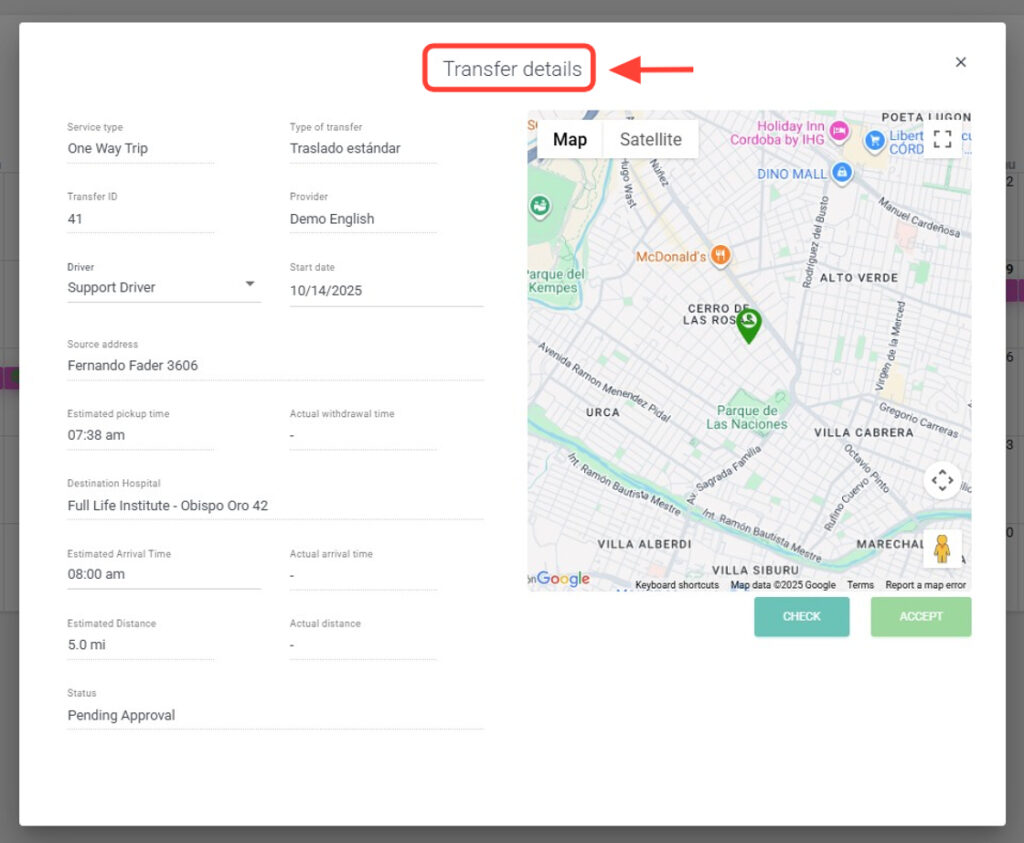
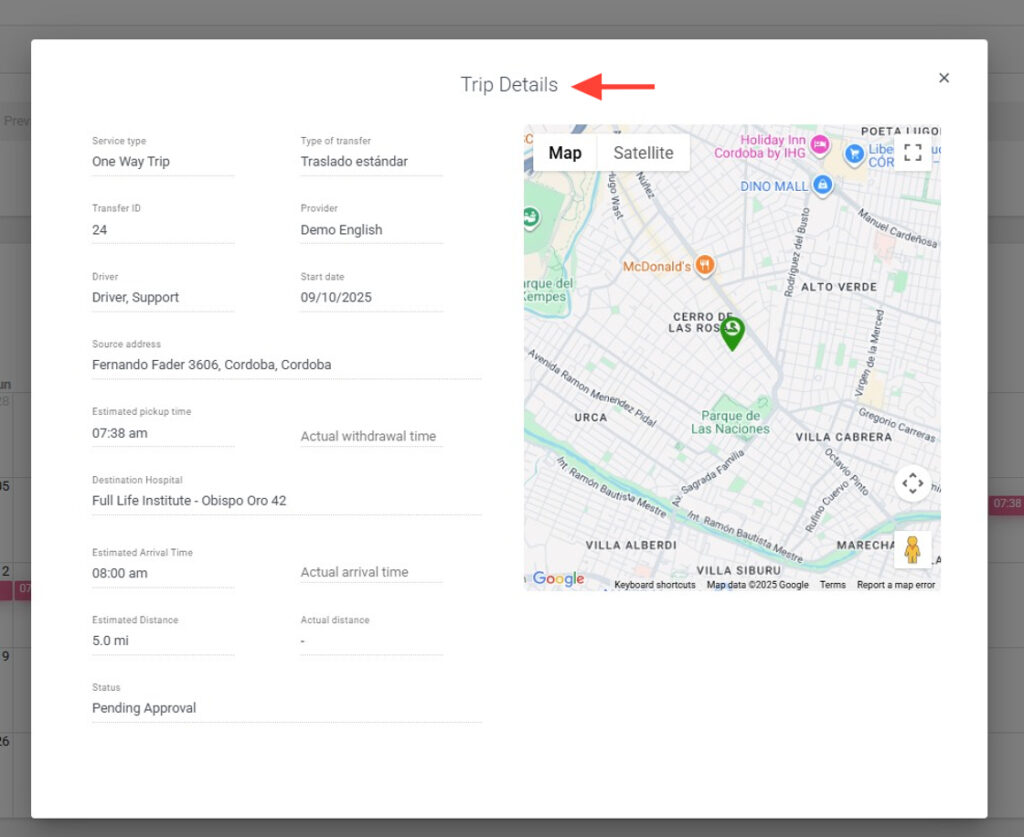
10. Click any transfer to view its full details.
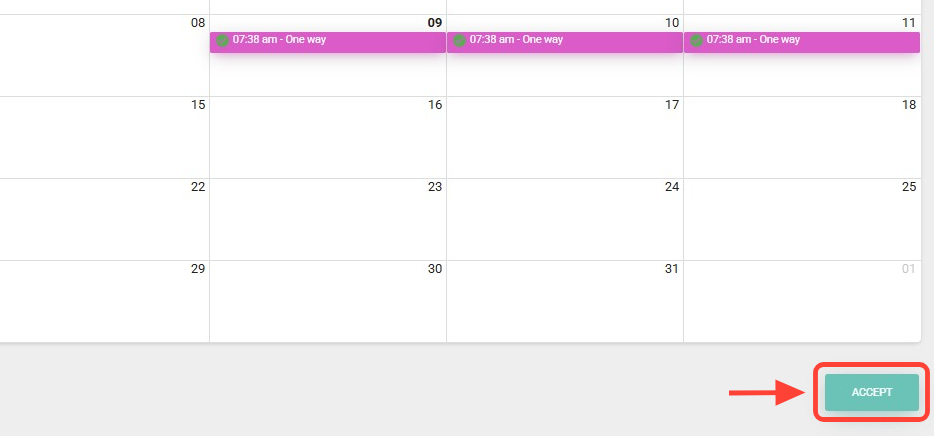
11. Click Accept.
12. Finally, click Save. The services in the request will now be marked as Assigned.
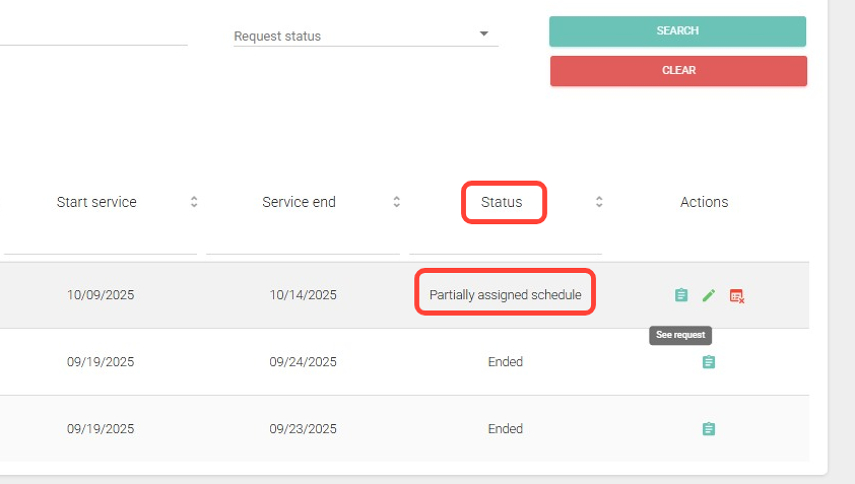
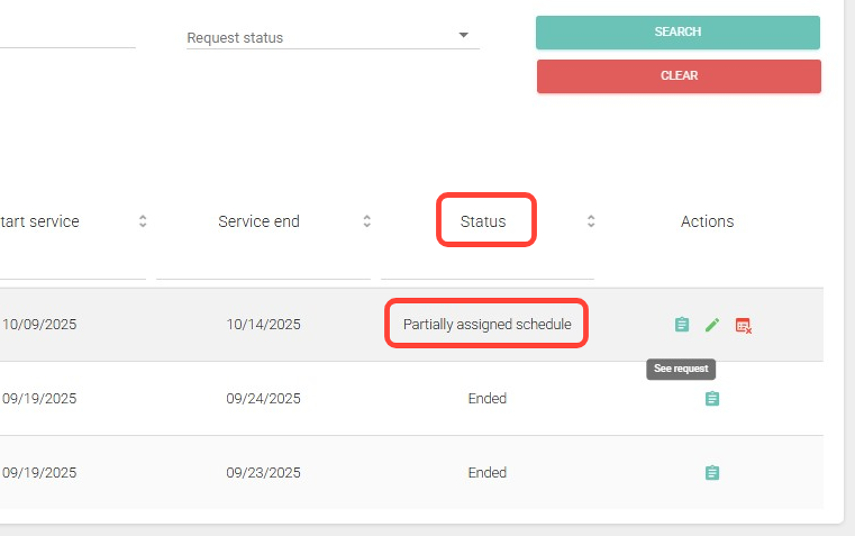
13. If the request includes more than one service and some remain unassigned, the status will show Partially Assigned Schedule.
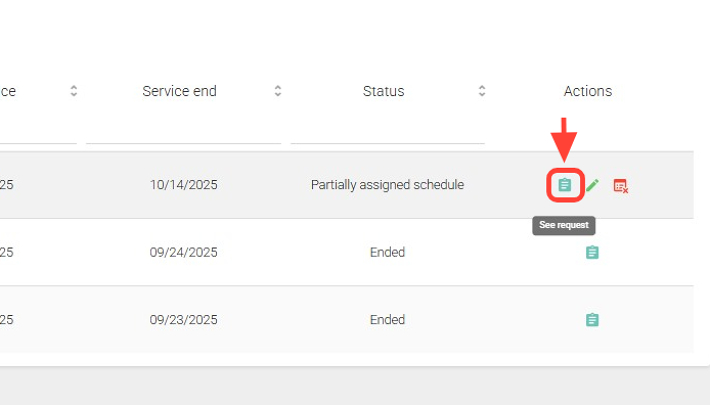
14. To view the calendar for a request, in the Actions column, click See Request.
15. Go to the Schedule section and select any transfer to view its details.