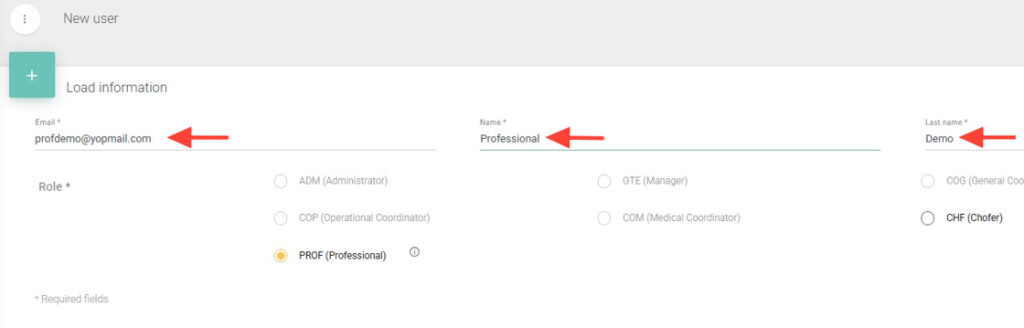
3. Fill in the required fields: Email, First Name, and Last Name.
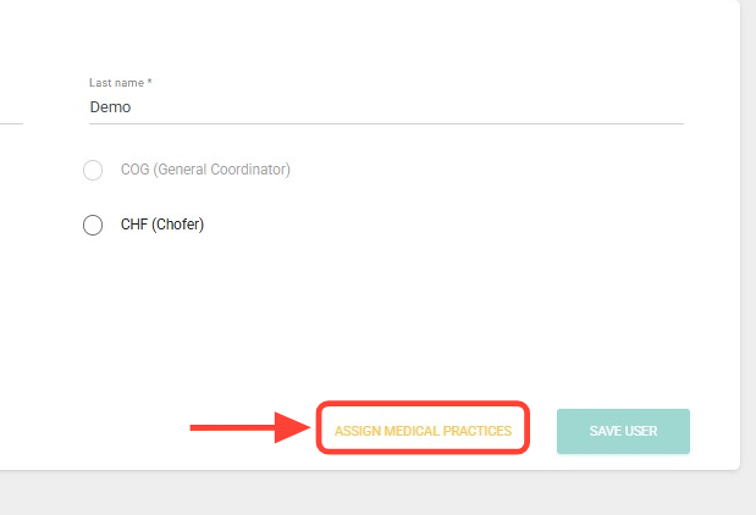
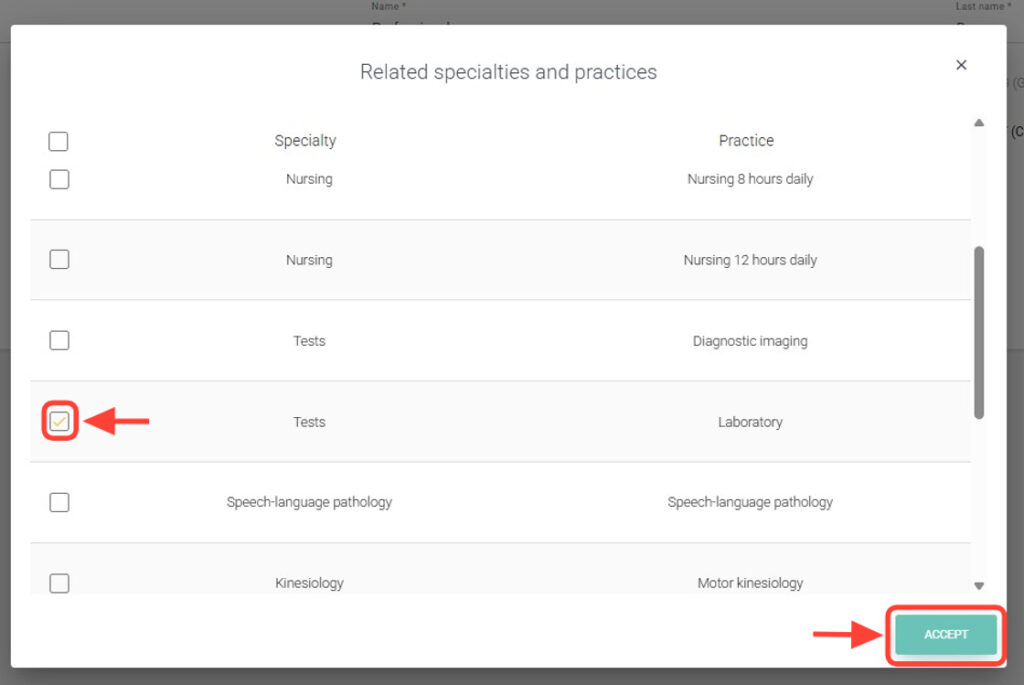
4. Assign at least one medical procedure to the professional; this is required for the creation to be completed successfully.
5. Once you have selected the procedure(s), click Accept to save them.
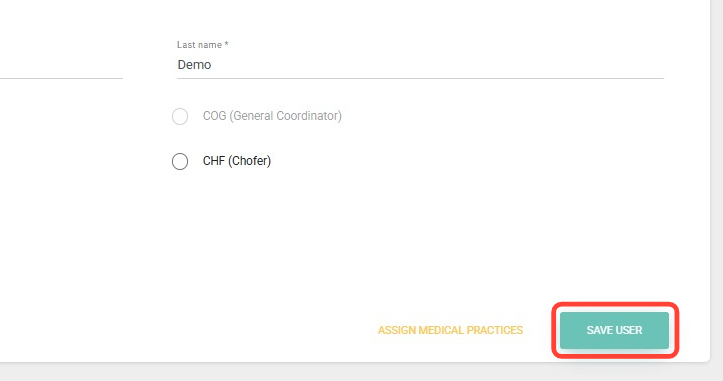
6. Click Save User.
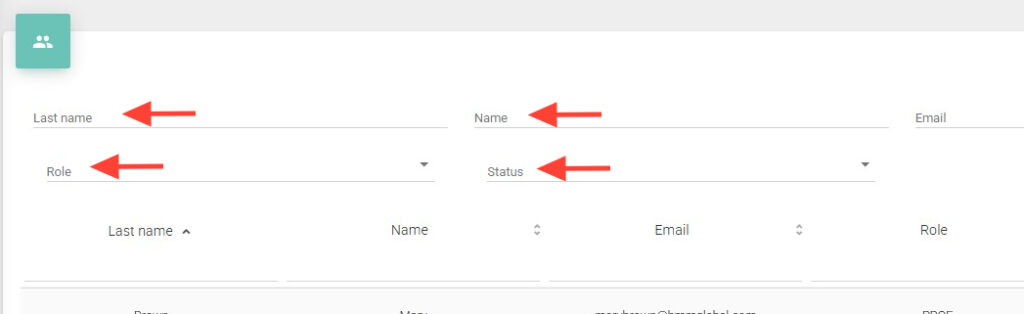
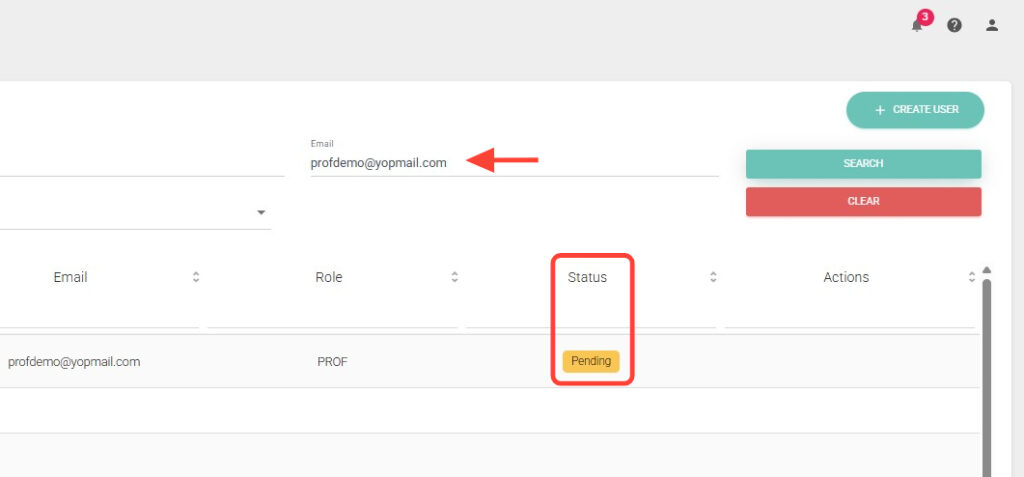
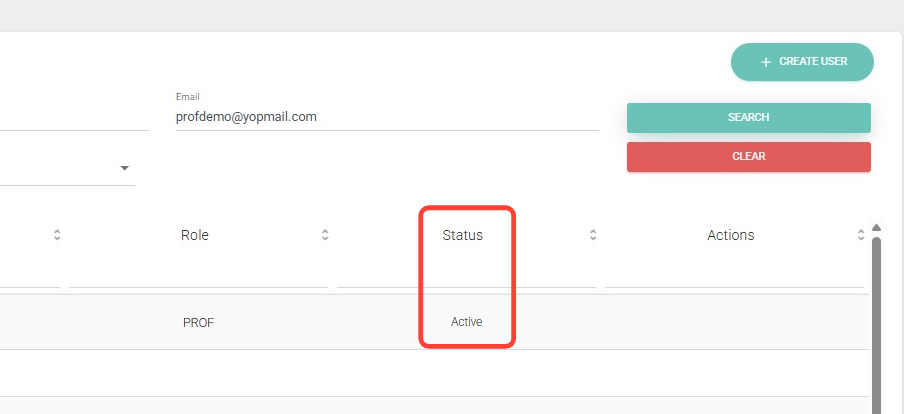
7. From User Management, you can search for the professional to verify whether their status is Pending or Active. Use the available filters such as email, name, or status.
8. If the professional’s status is Pending, it means they haven’t accepted the invitation yet. Note that they have 72 hours to do so; after that, you’ll need to create the user again.
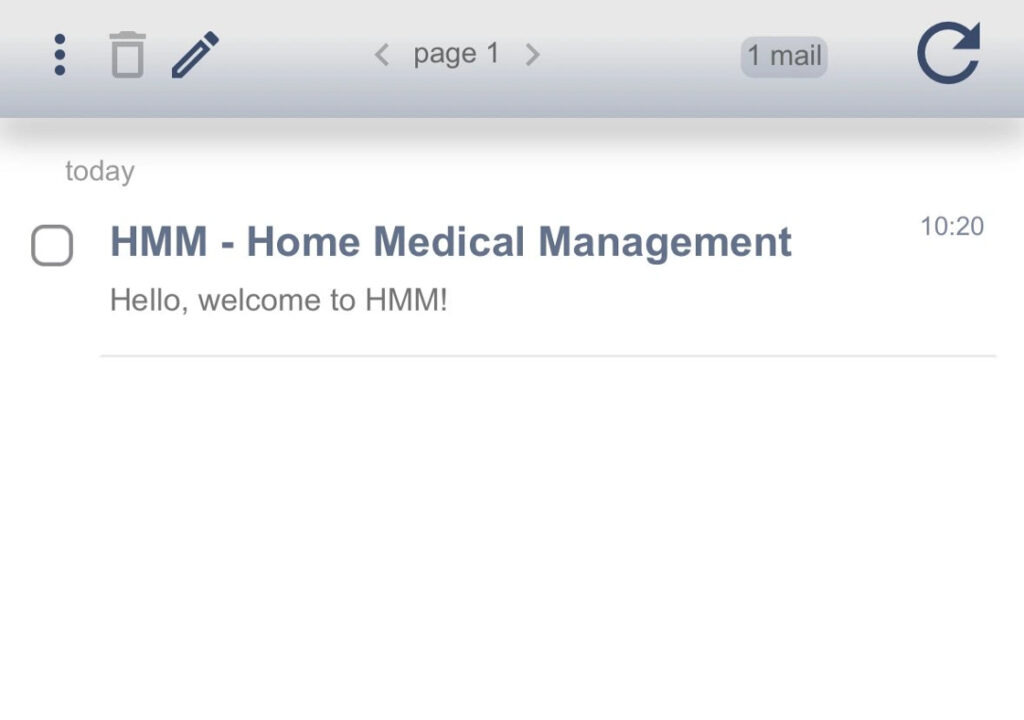
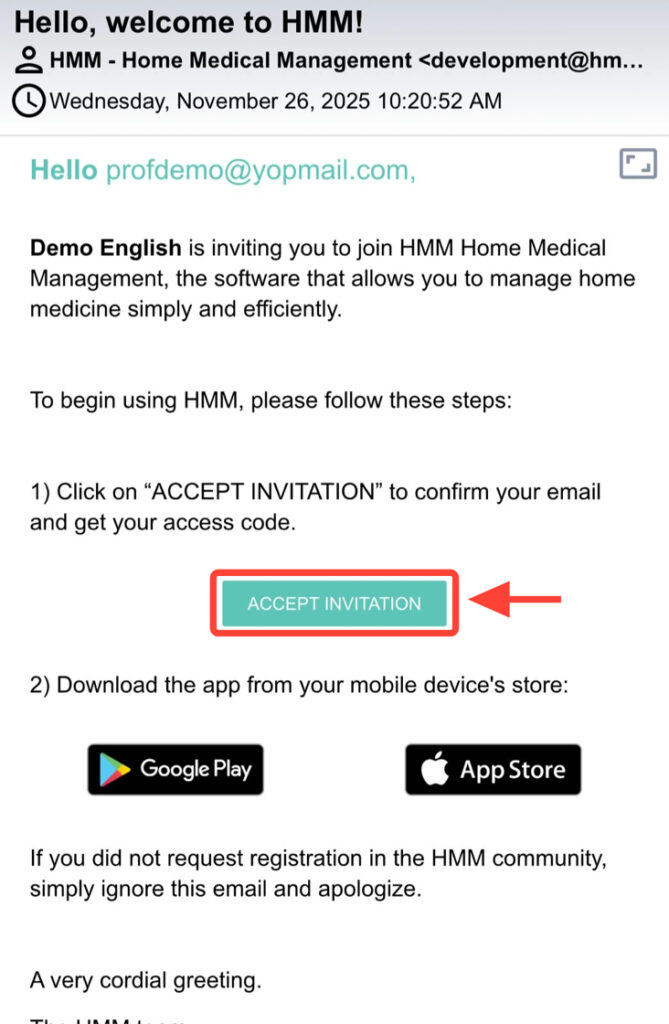
9. Once created, the professional will receive an invitation email, which they must accept to activate their access.
10. They must then click Accept Invitation to complete the access process.
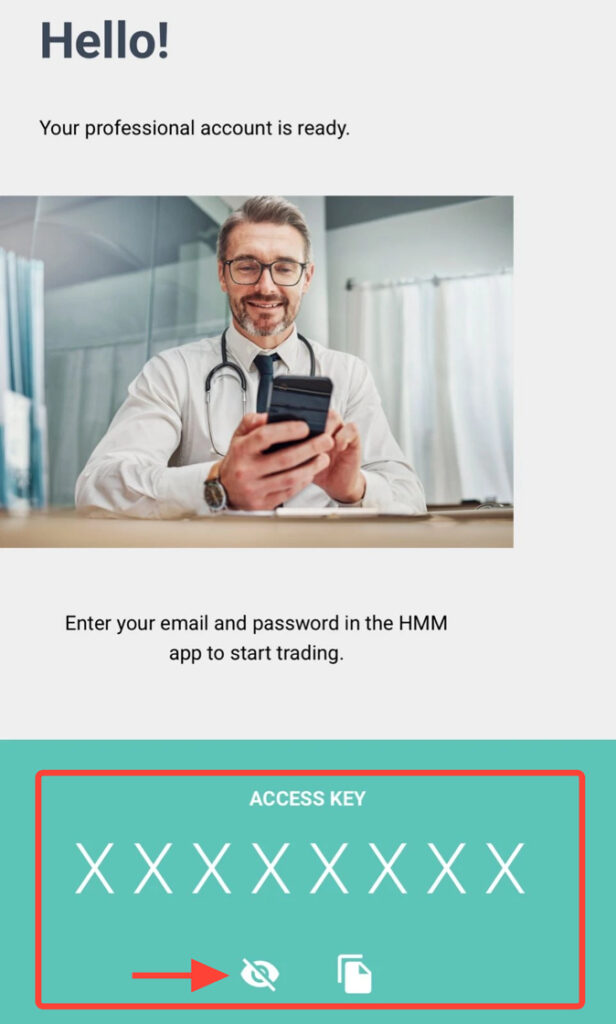
11. Upon accepting the invitation, a temporary password will be provided — it can only be viewed once. If the browser or email is closed, the professional must reset the password using Emma or by clicking Forgot my password in the app.
12. After accepting the invitation, the professional’s status will change to Active on the web. Remember that upon their first login to the app, the professional must complete their registration. After doing so, you’ll be able to find them under the Professionals section.