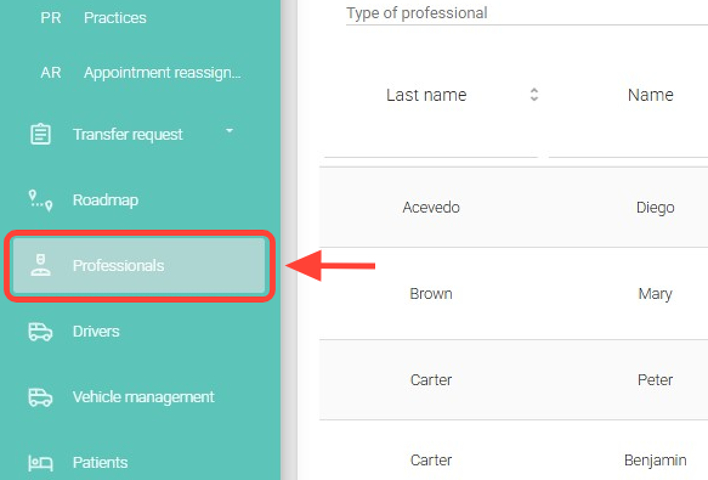
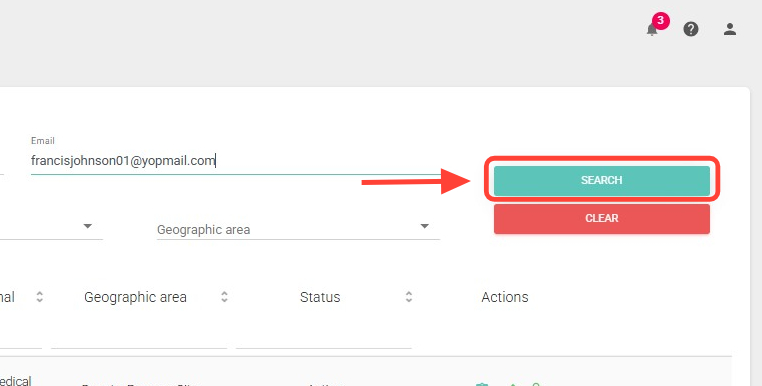
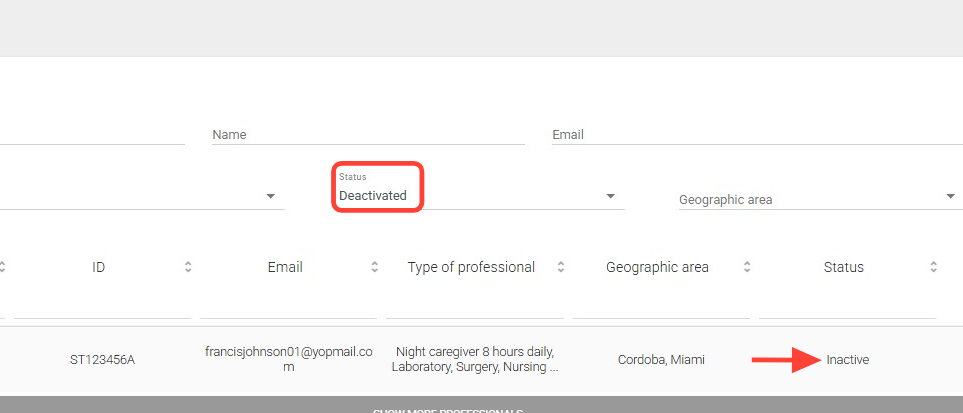
2. Search for the professional you want to activate or deactivate.
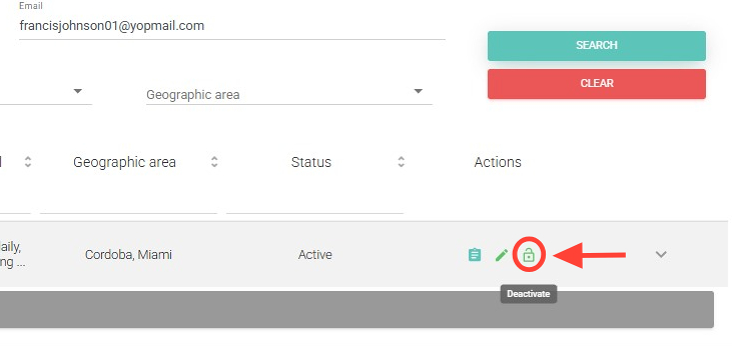
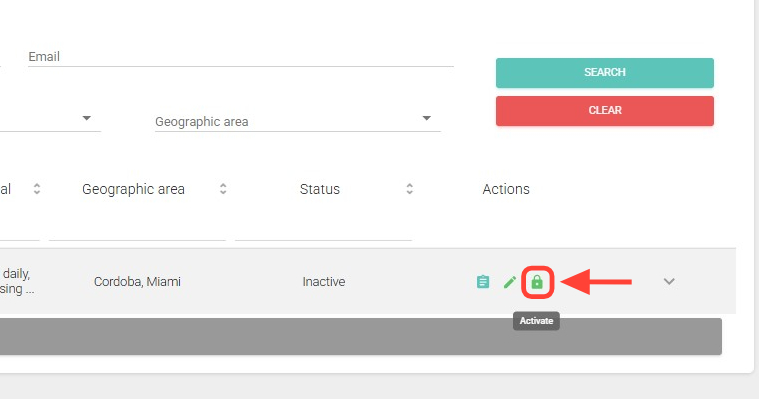
3. In the Actions column, click Activate to enable the professional or Deactivate to disable them. Note that a professional with assigned appointments cannot be deactivated; make sure they have no assigned appointments before proceeding.
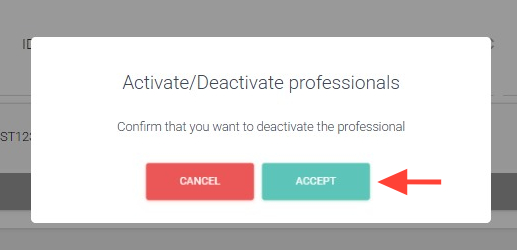
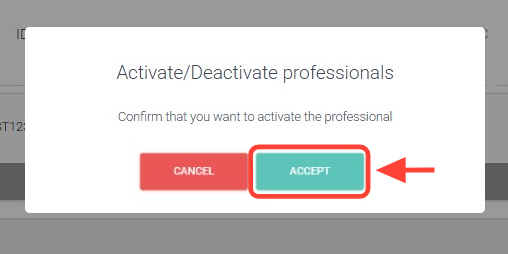
4. You must click Accept to deactivate the professional.
5. To verify the professional’s status, use the Status filter, which includes All, Active, and Inactive.
6. To enable the professional, click the Activate button.