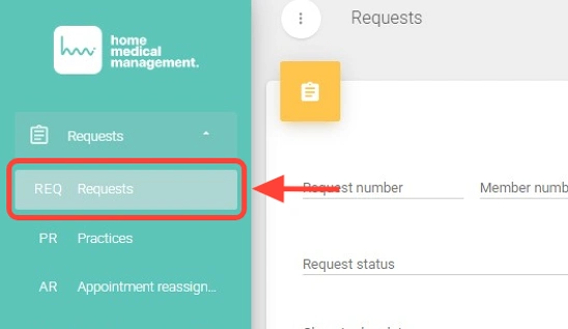
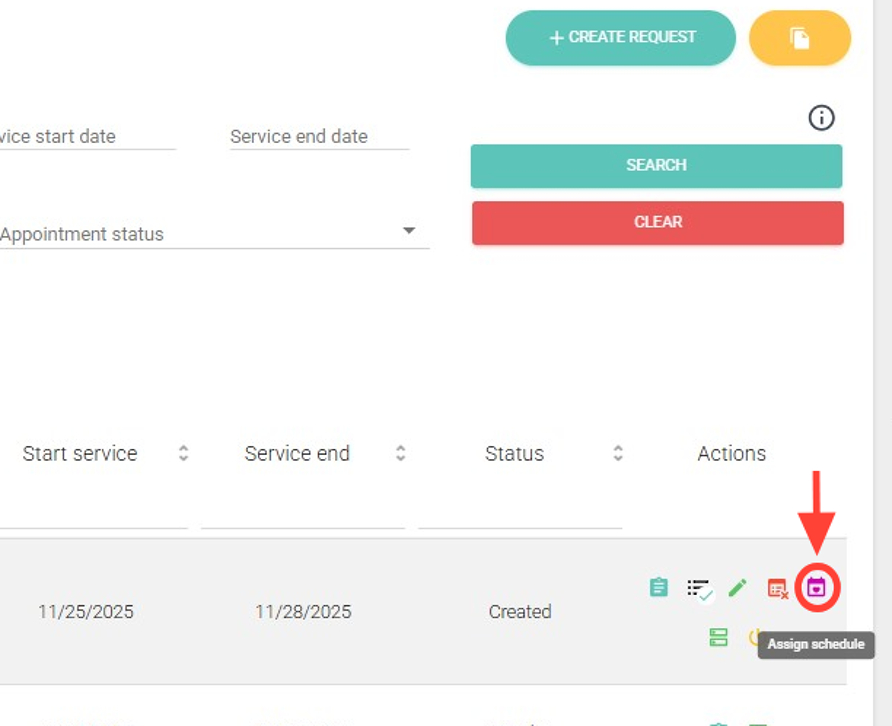
2. In the Actions column, click the Assign Schedule button.
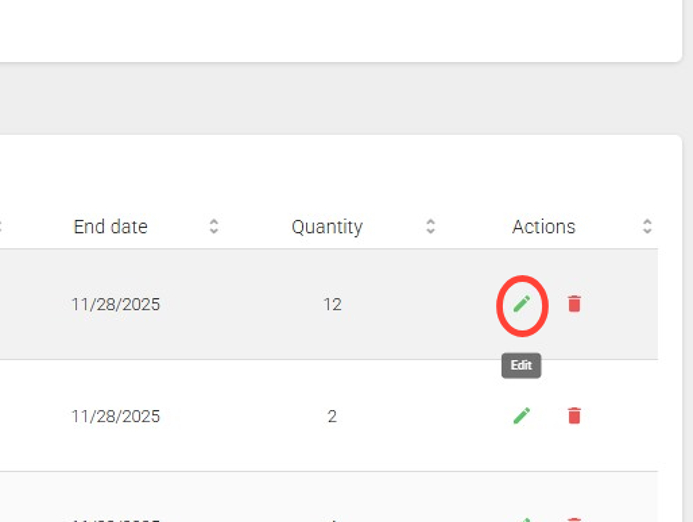
3. Once inside, in the Procedures/Modules panel, in the Actions column, click Edit on the procedure you want to assign.
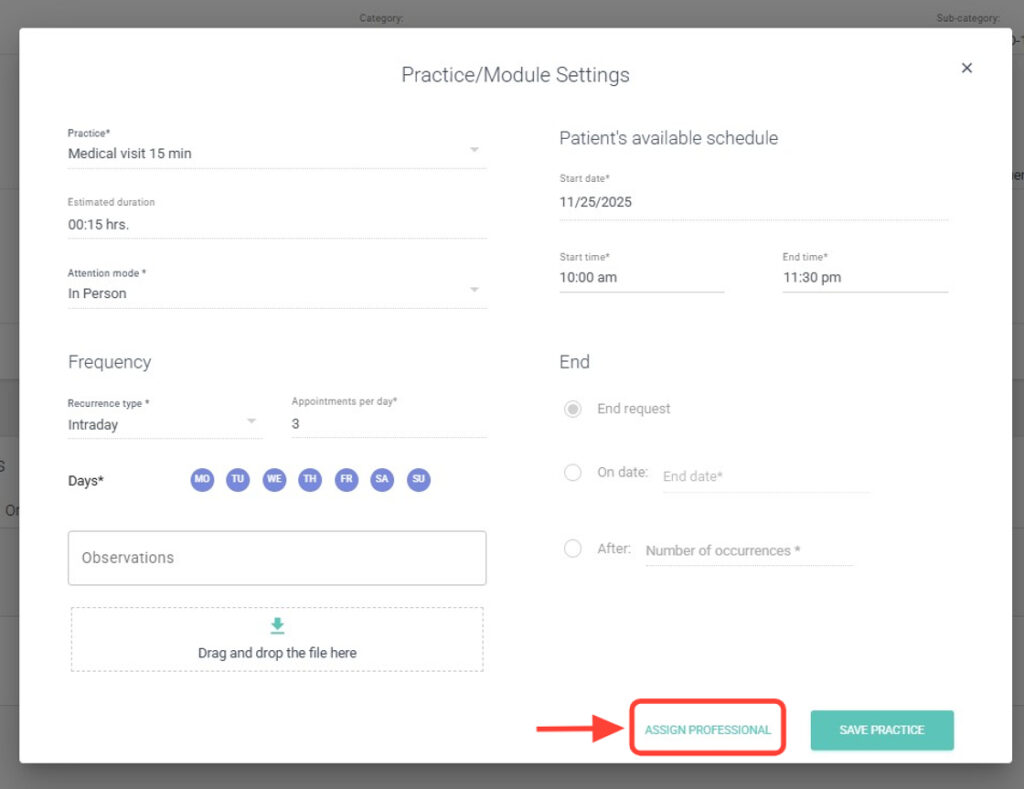
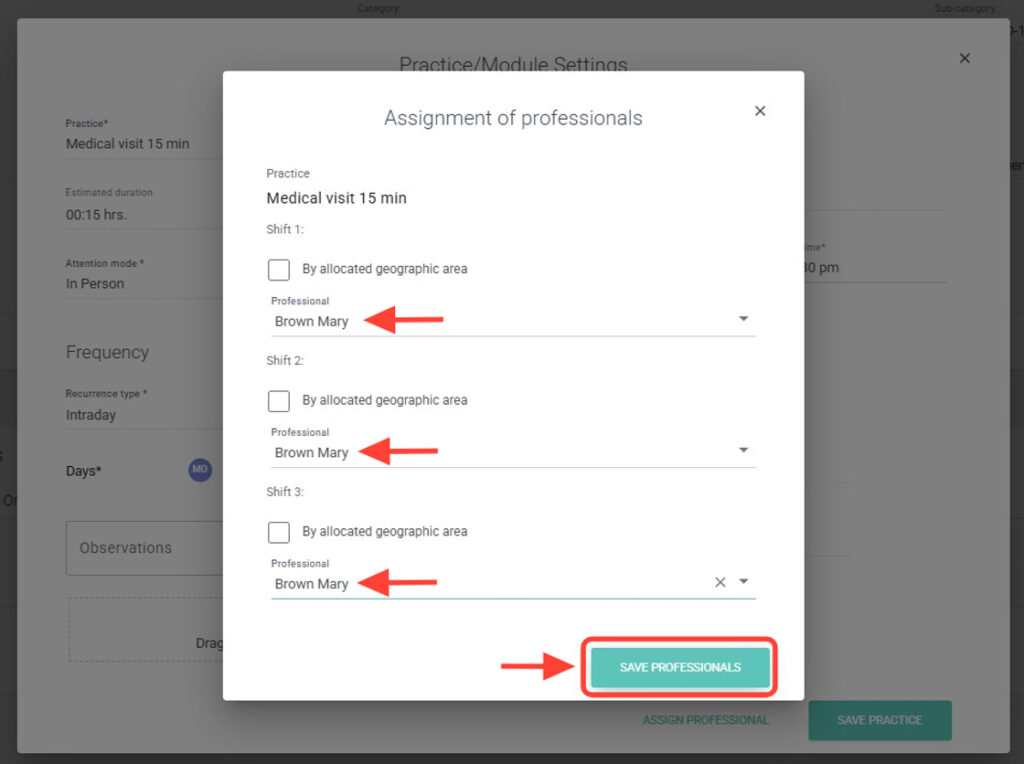
4. Next, click Assign Professionals.
5. Assign a professional to each appointment within the procedure as needed,
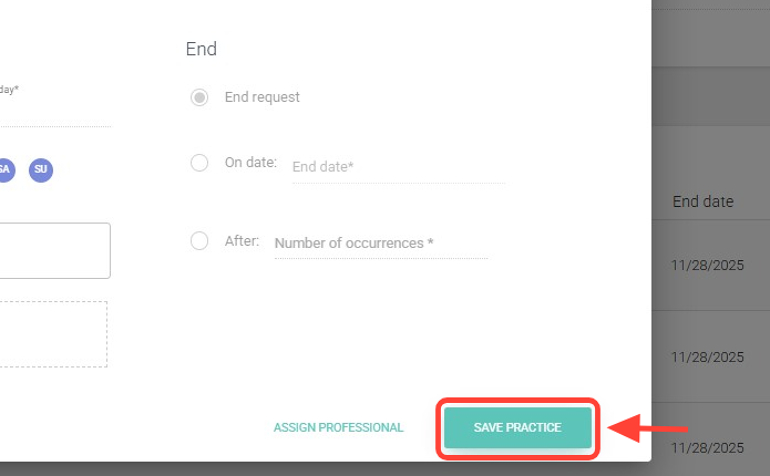
6. Then click Save Practice.
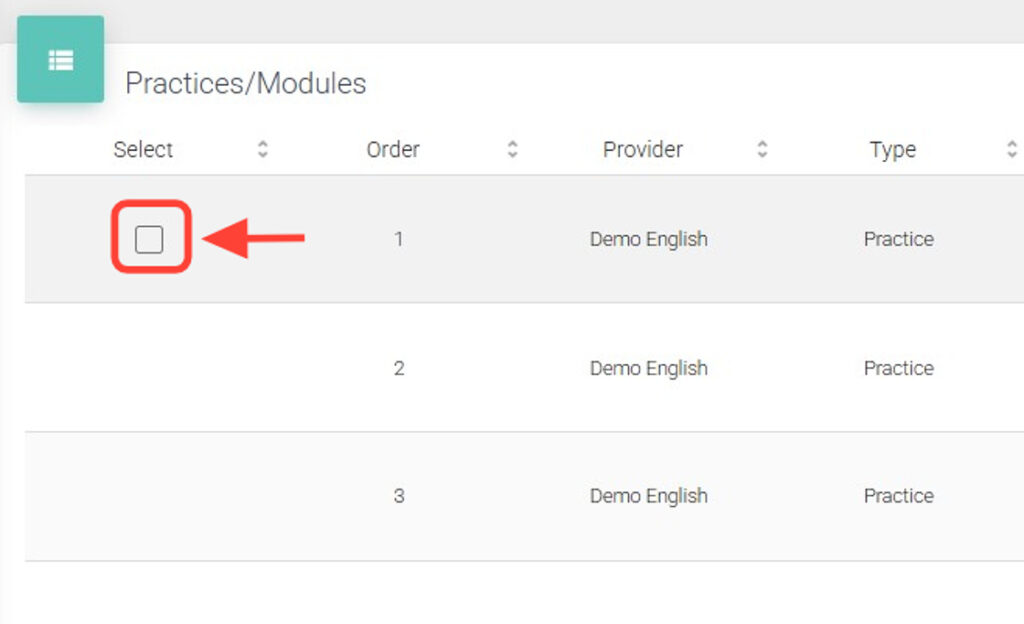
7. In the Procedures/Modules panel, select the procedure(s) you want to assign.
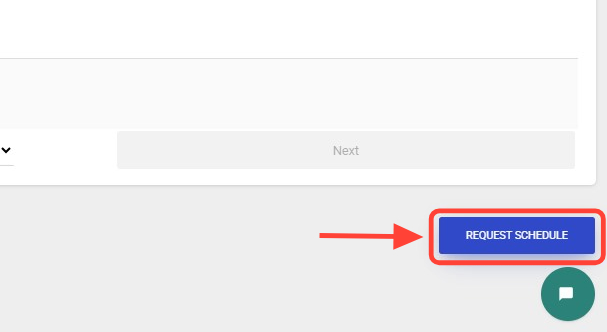
8. Click the Request Schedule button to continue with the assignment.
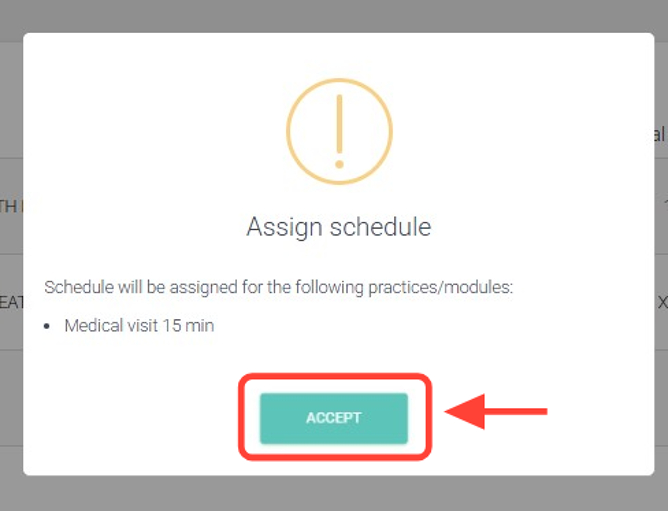
9. Click on Accept.
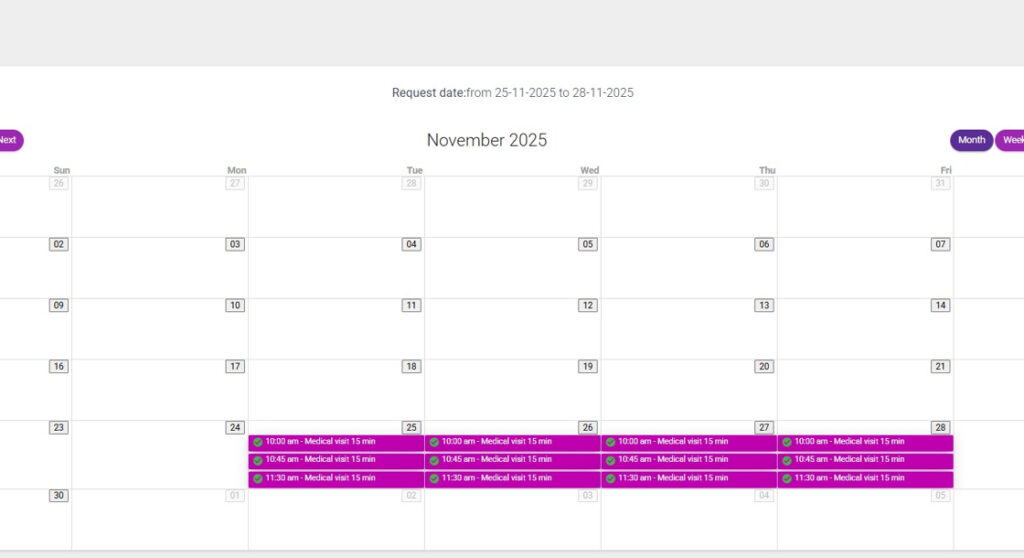
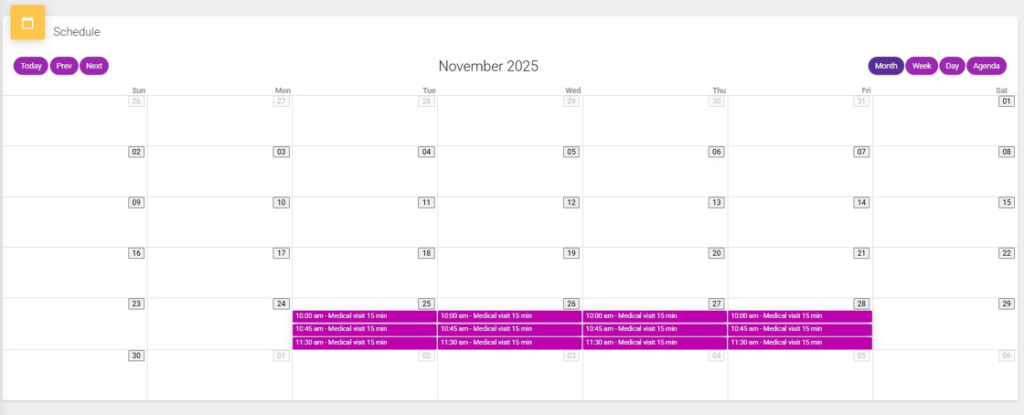
10. The calendar will open to verify the appointment status:
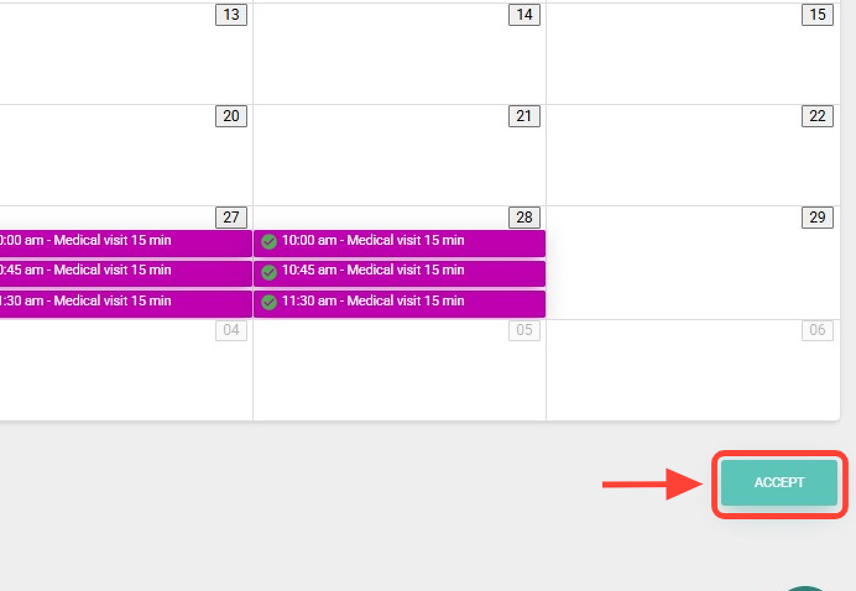
If all are correct, click Accept to confirm the assignment.
If any show conflicts, check the professional’s availability before confirming.
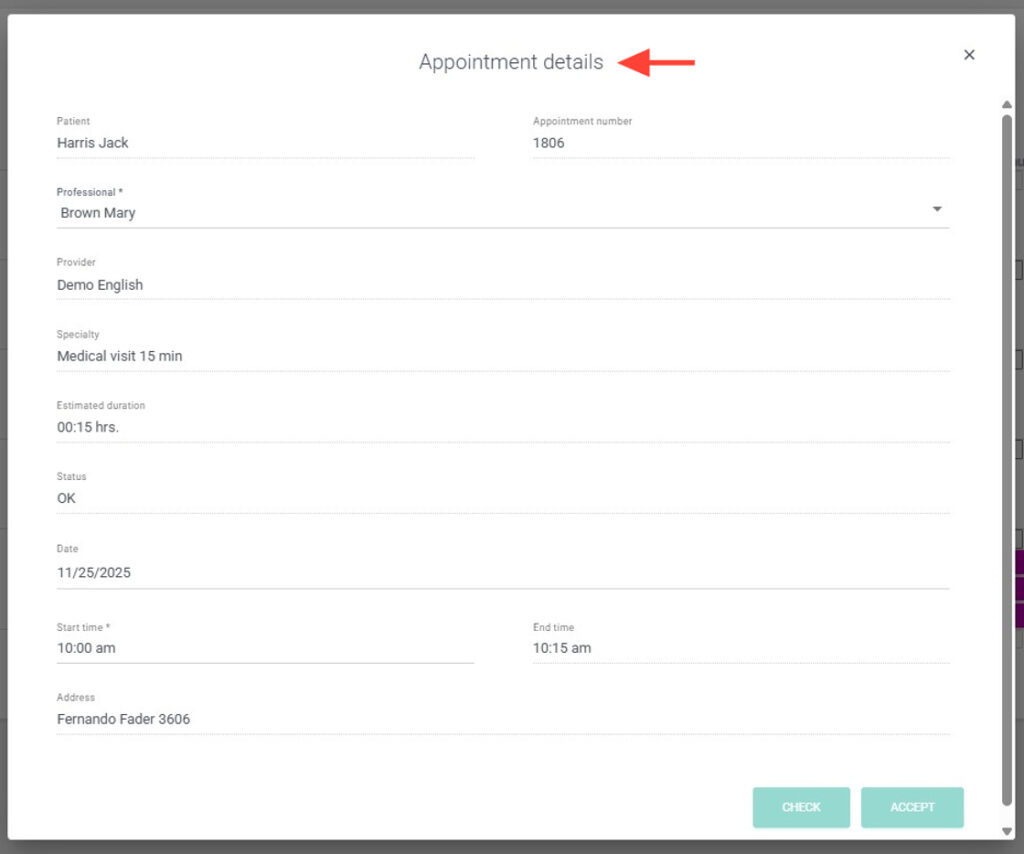
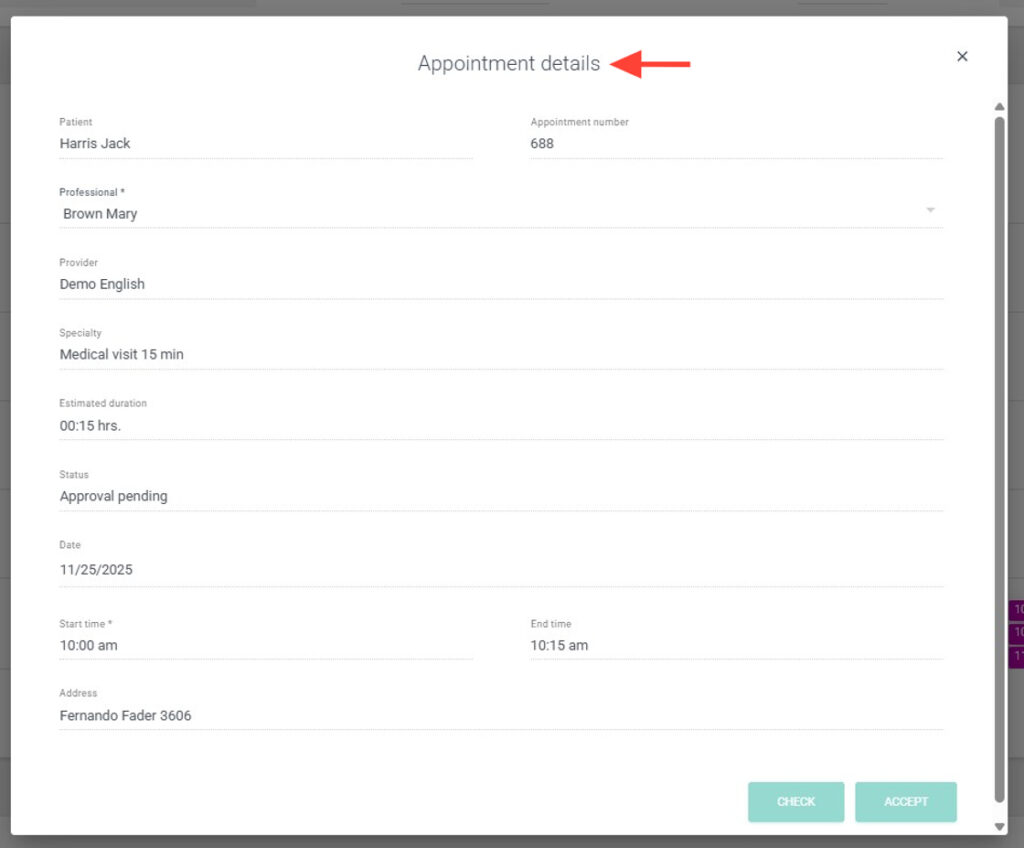
11. Click any appointment to view its full details.
12. Finally, click Accept and then Save. The request’s procedures will be set to Assigned.
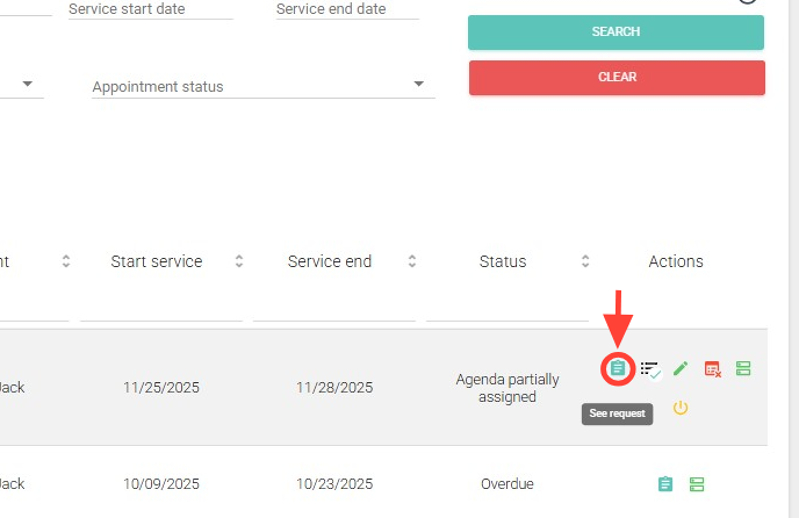
If the request includes more than one procedure and some are not assigned, the status will show Agenda partially assigned.
13. To view a request’s calendar, click See request in the Actions column.
14. Go to the Schedule section and select any appointment to view its details.
15. The schedule and appointments will be correctly assigned and visible for tracking.