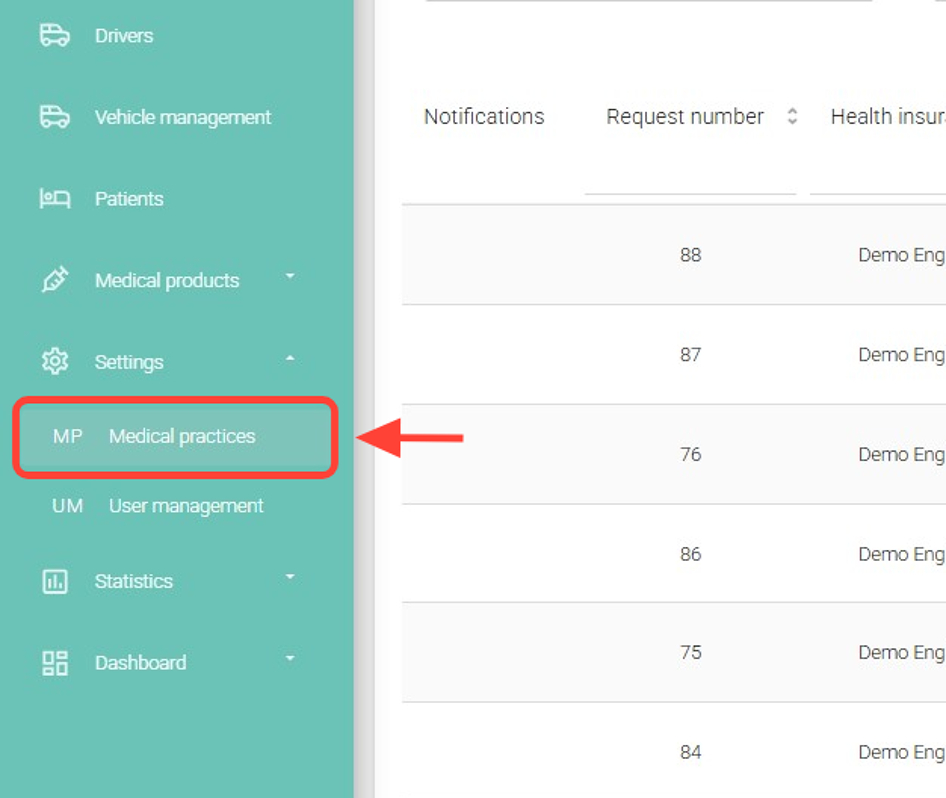
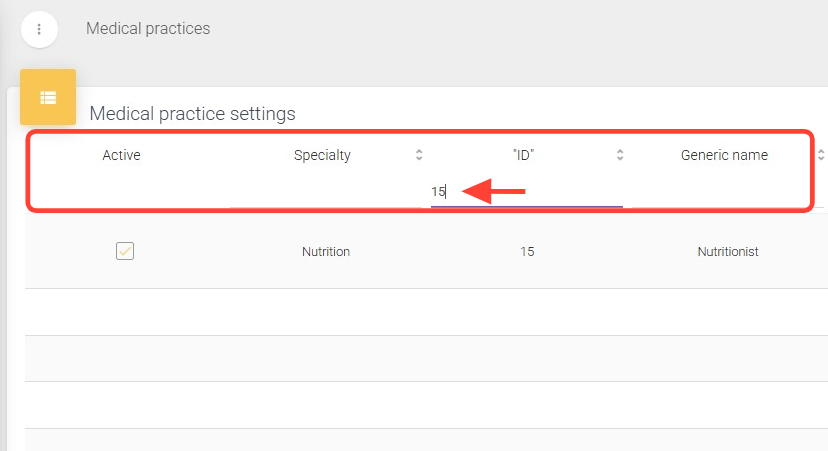
2. Search for the practice you want to deactivate using filters such as Specialty, ID, or Generic Name.
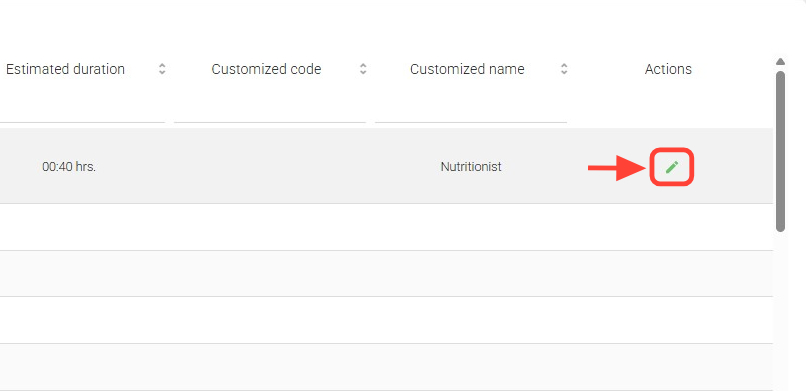
3. In the Actions column, click the Edit button for the selected practice.
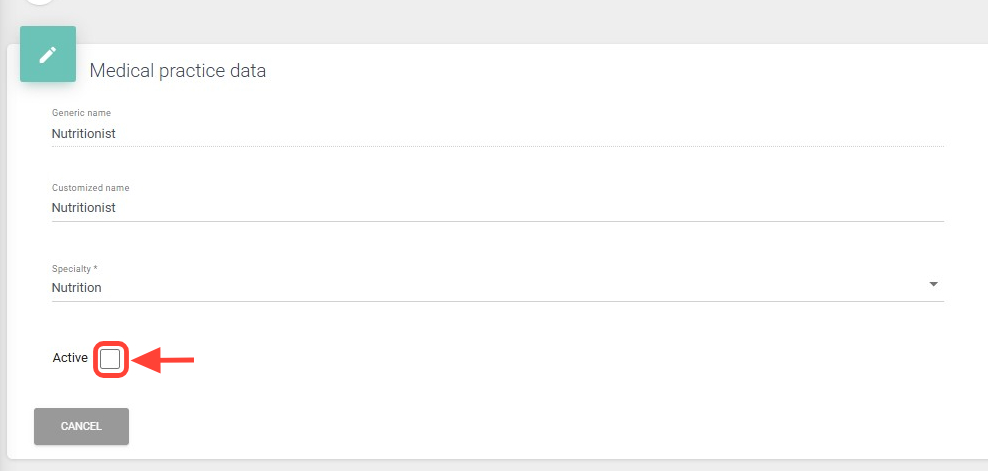
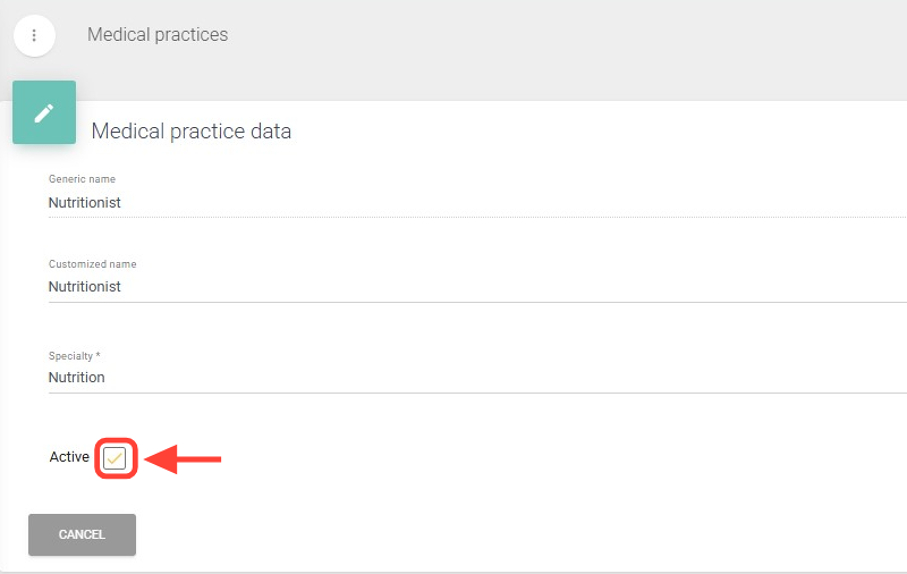
4. To deactivate the practice, uncheck the Active box.
5. To activate it, follow the same steps and check the Active box again.
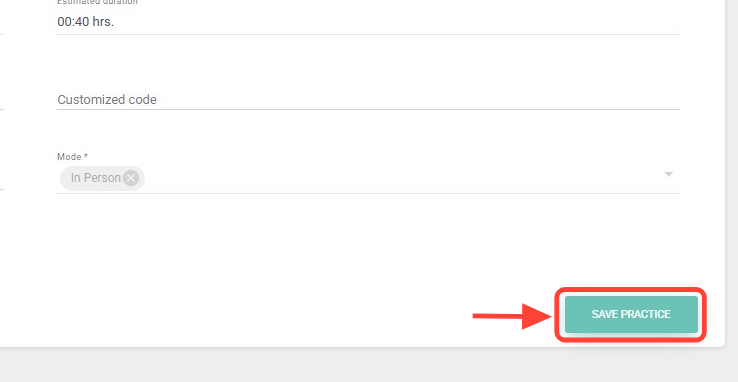
6. Finally, click Save Practice.
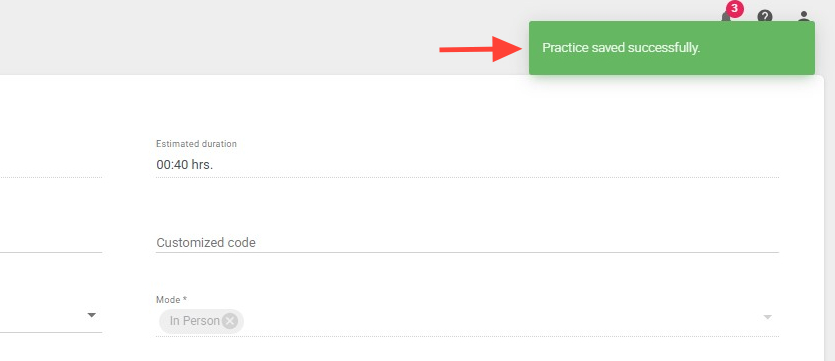
6. At the top right, you will see a notification confirming that your procedure has been successfully saved.